Why Facebook Reel Captions Drift Out of Sync When Exported to SRT
Reel Transcript Team
9/20/2026
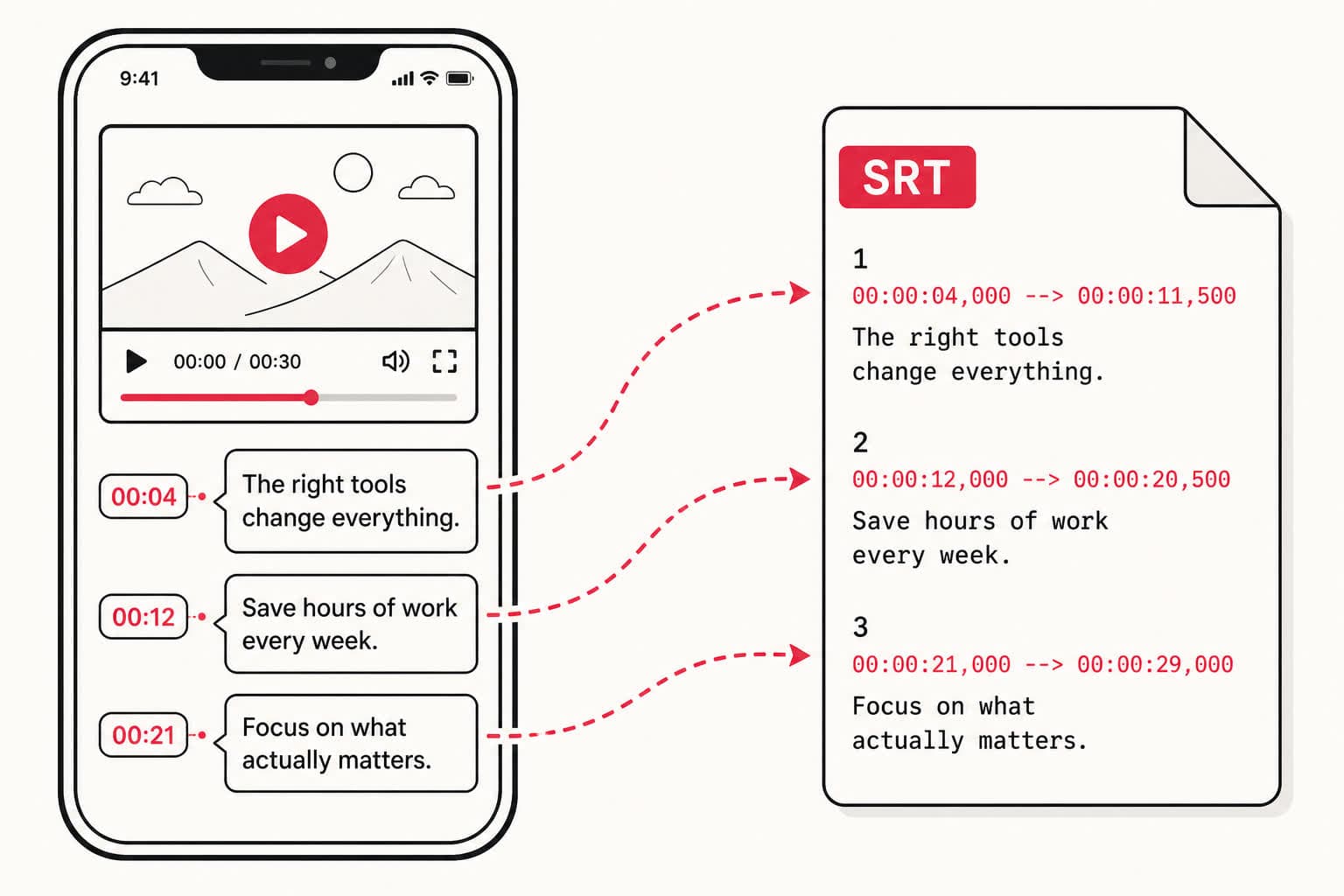
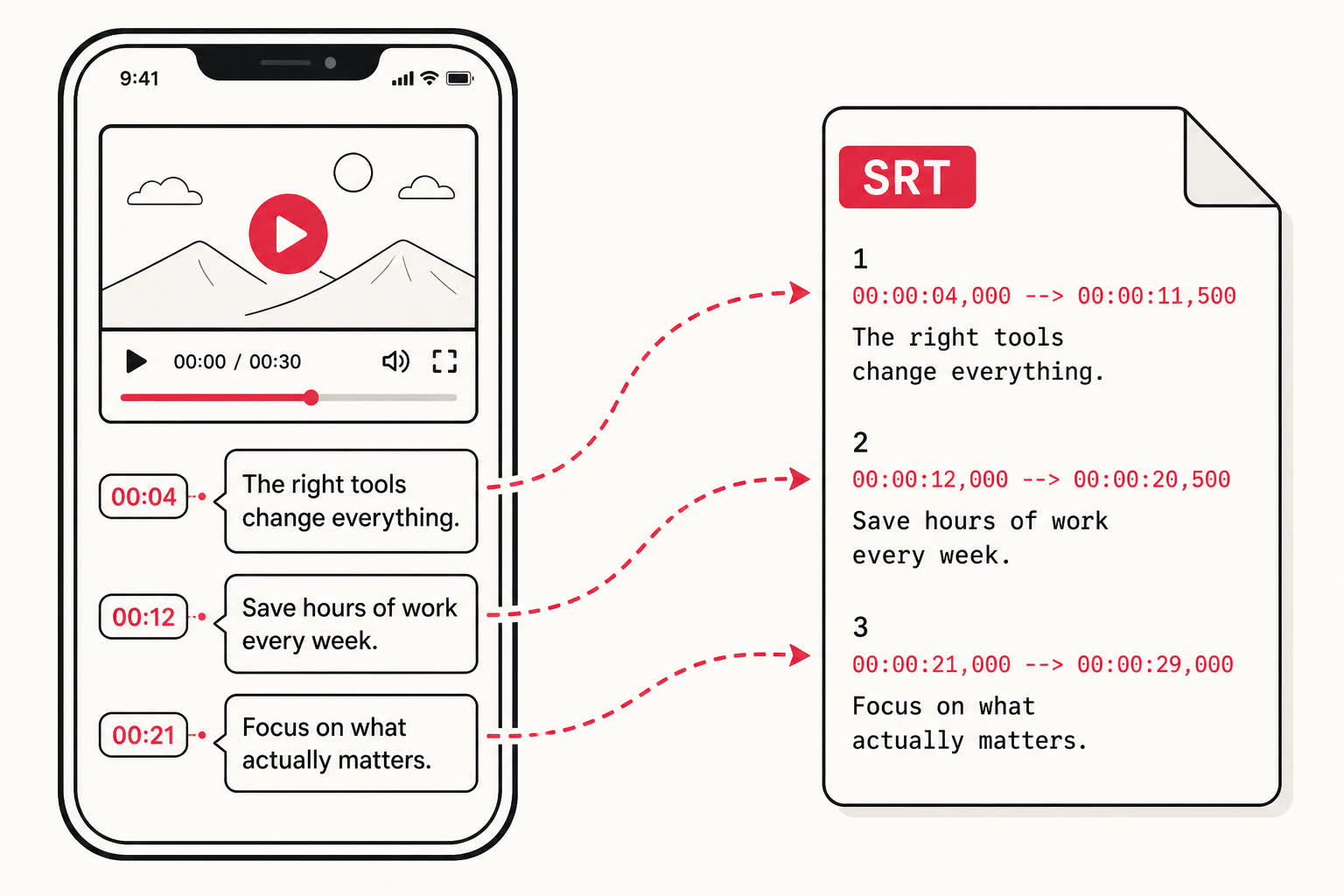
Exporting subtitles from Facebook Reels often leads to timing drift where words slowly pull ahead or lag behind the speaker.
While a transcript may start perfectly aligned during the opening three seconds, the gap widens over a sixty-second clip. This problem usually stems from how mobile video encoding handles frame timing rather than errors in speech recognition models.
Why Timecodes Drift on Facebook Reel Clips
Video editing timelines expect a constant, steady stream of frames. Social media uploads introduce three technical quirks:
- Variable Frame Rate (VFR) Encoding: Mobile phones record with variable frame rates to adjust for lighting shifts and thermal limits. When a phone drops from 30 frames per second to 24 frames during recording, native players compensate dynamically. Standard subtitle formats like SRT calculate strictly by absolute milliseconds, creating a growing discrepancy between audio playback and video frames.
- Audio Delay Ingest: Facebook server-side processing separates the container video stream from the compressed audio stream during upload. Ingest pipelines occasionally slip audio timing forward by 80 to 200 milliseconds to prevent mobile playback stutter.
- Container Header Mismatches: When saving clips through third-party tools, timestamp headers can reset to zero while the underlying audio codec retains its original presentation timestamp (PTS).
Step-by-Step Fix for Drifting Subtitles
When using Reel Transcript to process a Facebook Reel:
- Check the Sequence Settings in Your Editor:
- In Premiere Pro or DaVinci Resolve, verify that your timeline sequence matches the source video frame rate (commonly 29.97 fps or 30 fps).
- Avoid placing VFR clips directly into a fixed 24 fps cinematic timeline without conforming the source footage first.
- Apply a Global Offset First:
- If subtitles are consistently early or late by the same margin throughout the entire video, adjust the track start position rather than editing individual subtitle blocks.
- Conform Video Footage to Constant Frame Rate:
- For severe drift exceeding half a second, re-wrap or re-encode the source video to a constant frame rate (CFR) using HandBrake or ffmpeg before aligning your exported SRT file.
Checking Alignment Before Final Render
Always check the last spoken sentence of the video before exporting. If the first line and the last line both match the mouth movements on screen, the intermediate subtitles will remain in sync.